Short answer: To install JavaScript, install Node.js, the runtime that runs JavaScript outside the browser. On Windows or macOS, download the installer from nodejs.org; on macOS you can also use brew install node or sudo port install nodejs; on Ubuntu, run sudo apt install nodejs and sudo apt install npm. Check it with node --version and run files with node app.js.
Learning how to code in JavaScript is an excellent option for those who want to get started in the coding world. JavaScript is a versatile and widely used programming language, which makes it a handy tool for any web developer. If you got to this point and still don't know JavaScript in detail, it is worth first reviewing what JavaScript is used for. Because JavaScript is a programming language that runs mainly in browsers (Chrome, Firefox, Edge, etc.), if we want to use it on our system, we must install Node.js.
What is NodeJs?
When we talk about installing Javascript in our system, we mean installing the environment that allows us to develop in Javascript and right there is where we found NodeJs.
NodeJs is the execution environment for Javascript that's used for the development of web apps Front End and Back End. It was built on V8, the engine that Chrome uses to process Javascript code (let's remember that this language is designed to be executed in browsers)
How to install Javascript (NodeJs)
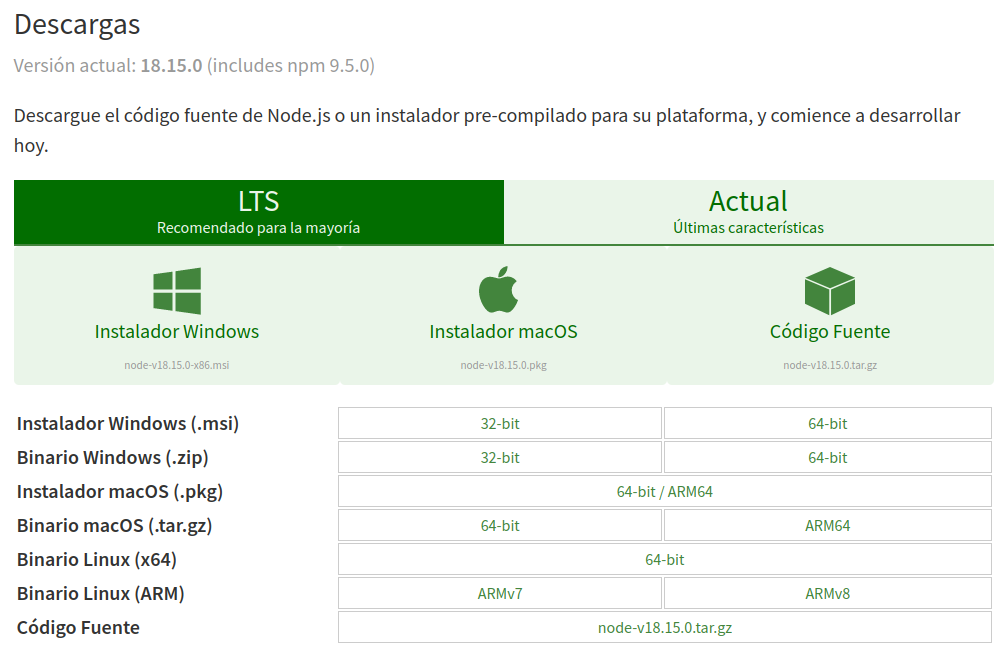
The first step to add NodeJs to our system would be to access this link and select the Operating System to start the loading.
Windows
To complete the installation on Windows, you must follow the steps described in the installer. It doesn't require any configuration while it's installing, so it will be "next", "next", "next", "finish".
To verify it has been installed correctly:
- We access the command line (search in CMD applications or press
win+rand typecmd) - Type
node --version
If installed correctly, it should appear a response similar to the one shown below.
v18.15.0The version could be different.
MacOS
Installing NodeJs through download from nodejs.org
Once we access the download area (the link above), we must select macOS installer and download it.
Because it doesn't require any type of modification while installing, you will only have to start the installer and follow the steps ("next", "next", "next", "finish".)
Installing NodeJs through homebrew
If you want to do the installation from the terminal, you can do it through the homebrew package manager.
To do the installation, we must execute the following command on the terminal
brew install nodeInstalling NodeJs through MacPorts
To install NodeJs using MacPorts as a package manager, you will have to open the terminal and type
sudo port install nodejsTo verify the installation, either by downloading from NodeJs, Homebrew, or MacPorts, you will have to open the terminal and run the following command node --version. If it was installed correctly, a message similar to this will be shown:
v18.15.0The version could be different.
Linux
Because Linux comes in different versions, we will talk about how to install NodeJs on Ubuntu only.
Install NodeJs with APT
Important note: Because we will be using the Super user to do the installations, you will most likely be asked for your password to complete the steps.
Every time that we are going to add new software to our system based on Linux, we must update our
local package indexes, and then we can install the package that we want, in this case, nodejs.
sudo apt update
sudo apt upgrade
sudo apt install nodejs
We have to install npm (Node Package Manager) to manage the NodeJs packages because it doesn't come included in the version described.
sudo apt install npmInstall NodeJs with APT and PPA NodeSource
If we want to install a different version of NodeJs to the one we can install with the previous resource, we can use a PPA (Personal Package Archive) maintained by NodeSource. In the PPA you can find more versions of the package than in the Ubuntu repository.
As we mentioned before, it is necessary to do an update and upgrade every time we want to install new packages to optimize the compatibility of the packages and use the last version of our programs and systems:
sudo apt update
sudo apt upgrade
sudo apt-get install curl
If by any chance we don't have installed cURL, we can install it this way:
sudo apt-get install curlNow that we are ready to add the NodeJs repository, remember to change setup_18.x for the version that you want to install, for example, setup_14.x
curl -fsSL https://deb.nodesource.com/setup_18.x | sudo -E bash -Once you have added the repository of your choice, we must proceed to install it:
sudo apt-get install nodejsThis way it is not necessary to install NPM because it already comes included in the package that we just installed.
Verify installation
To verify the installation of NodeJs and NPM on Linux, we will open the terminal and type
node --version
npm --version
If it was installed correctly, it will be shown the following information, for NodeJs v18.15.0 and for NPM 9.5.0. Both returns will depend on the installed version. In that way, we can use the command:
whereis node
whereis npm
With these commands, we can know where the packages are installed.
Execute JavaScript
NodeJs does not possess a User Interface (UI) to develop, instead, by using IDEs like VS Code, Atom, etc. We can execute JavaScript making use of the environment provided by NodeJs without the need to make major changes (or any changes) in the System configuration ourselves.
Let's say that we have an app.js file that we created to test our installation and execute JavaScript code from our system.
This is going to be the js code that will be in our app.js file:
console.log("I can run now outside of the browser!")To execute this code, we have to open the terminal or CMD (if you are using Windows), and type node followed by where the js file that we want to execute is located.
Example: let's suppose that we have our app.js file in the unit C: folder test
node c:\test\app.jsIf the correct address where the file is located has been passed, it will be displayed in the console:
I can run now outside of the browser!You can learn related content and much more on the blog of 4Geeks.
With Node.js installed, JavaScript runs on your computer and not only in the browser. A software development bootcamp shows you how to turn that environment into full-stack applications through guided projects and mentor support.